















How to Install WiFi Light Switches: Step-by-Step
Last Updated: October 23, 2026
Quick Summary
To install wifi light switches, turn off power at the breaker, remove your old switch and photograph the wiring, connect the new switch wires to their correct terminals (live, neutral, switch and earth), secure it in the box, then restore power and test. Most standard UK single switches are compatible if your switch box has a neutral wire.
- You need a voltage tester, screwdrivers, torch, and masking tape before starting installation
- WiFi light switches require a neutral wire to function, which many older UK homes lack
- Two-way switches need a special smart switch designed for two-way circuits, not a standard WiFi switch
- If your switch box has no neutral wire or you’re unsure about your wiring, call a qualified electrician
- After installation, download the switch’s app, select Add Device, and enter your WiFi password to connect
Table of Contents
- What You’ll Need Before Installing WiFi Light Switches
- Understanding Smart Light Switch Neutral Wire Requirements
- Checking WiFi Light Switch Compatibility With Your Wiring
- Step-by-Step: How to Install WiFi Light Switches
- How to Connect Smart Light Switch to WiFi
- Installing WiFi Light Switches on Two-Way Smart Light Switch Wiring
- Troubleshooting Common Installation Problems
- When to Call a Qualified Electrician
- Frequently Asked Questions
What You’ll Need Before Installing WiFi Light Switches
Installing a WiFi light switch is straightforward if you gather the right tools first. You’ll need a screwdriver (typically cross-head), a voltage tester to confirm the power is off, and a torch or headlamp to see inside the switch box clearly.
Most WiFi light switches work with standard UK wiring. However, some older installations may need checking. Your home’s electrical setup determines whether installation is simple or requires a qualified electrician’s help.
Here’s what to have ready:
- Voltage tester (essential for safety)
- Screwdrivers (slotted and cross-head)
- Torch or headlamp
- Your new smart switch and its manual
- Masking tape and a pen (to label wires)
- Phone camera (to photograph the old switch wiring before removal)
HSE guidance on electrical safety at work and home recommends treating all electrical work with caution, even when you’re confident. If anything feels uncertain, stop and call a qualified electrician instead.
Understanding Smart Light Switch Neutral Wire Requirements
The neutral wire is critical for WiFi light switches to work properly. Unlike traditional mechanical switches, smart switches need a complete circuit to power their electronics.
A neutral wire is the return path for electrical current. It completes the circuit and allows power to flow safely back to the consumer unit.
Many older homes in the UK have switch boxes without a neutral wire. These installations ran the switch directly between the live and switch wire.
Check your switch box now:
- Look for a neutral wire (usually blue or black)
- Count how many wires are present
- Take a photo before touching anything
- If you see only two wires (live and switch), you’ll need professional help
If your switch box lacks a neutral wire, a qualified electrician can run one from the consumer unit.
Checking WiFi Light Switch Compatibility With Your Wiring
Before you buy, confirm your home’s wiring will support a WiFi light switch. Compatibility depends on your switch configuration and whether you have a neutral wire available.
Standard single-gang switches (one switch controlling one light) are usually compatible.
Check your current setup:
- Is this a single switch or two-way switch?
- Does your switch box have a neutral wire?
- How many wires are in the box currently?
- What voltage does your smart switch require (most need 110-240V AC)?
The British Standards Institution guidance on electrical installations recommends checking your installation against BS 7671 (Requirements for Electrical Installations). This standard governs all domestic electrical work in the UK.
Most modern WiFi switches work with standard UK 230V single-phase supplies. However, some smart switches have specific requirements. Read your switch’s manual thoroughly before purchase.
Step-by-Step: How to Install WiFi Light Switches
Installing a WiFi light switch follows a logical sequence. Complete each step carefully before moving to the next. Rushing creates mistakes and safety risks.
Step 1: Turn Off Power at the Breaker
Safety comes first. Always turn off power before touching any wires.
Go to your consumer unit and find the breaker controlling the light circuit. Switch it to the off position. Then test the light switch to confirm the power is off. Flip the switch up and down, the light should not respond.
Use your voltage tester on the switch wires to double-check. Place the tester probe on each wire. No beep or light means power is off. If you hear a beep or see a light, the breaker is not the right one. Keep looking until you find it.
Step 2: Remove the Old Switch
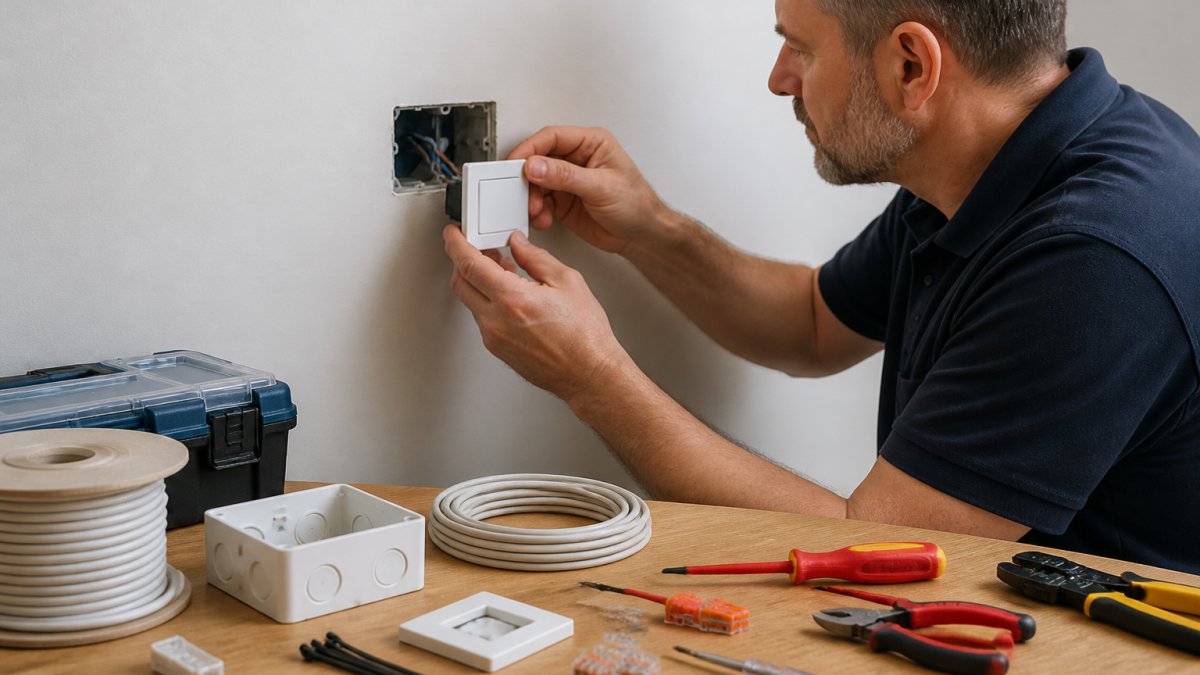
With power confirmed off, unscrew the faceplate and remove it. You’ll now see the switch mechanism and the wires connected to it.
Take a photo of the wire connections before touching anything. This photo is your reference if you forget which wire goes where.
Unscrew the terminal screws holding each wire. Wires typically connect under small screws on the switch body. Loosen these screws and gently pull the wires free. Be careful not to damage the wire insulation.
Label each wire with masking tape as you remove it:
- Live wire (usually red or brown)
- Switch wire (usually black or grey)
- Neutral wire (usually blue or black)
- Earth wire (usually green and yellow striped)
Step 3: Identify and Connect the Wires
Your new WiFi light switch has terminals for each wire type. Most smart switches have clear labels showing where each wire connects.
Connect the wires in this order:
- Live wire to the live terminal (marked L or red)
- Neutral wire to the neutral terminal (marked N or blue)
- Switch wire to the switch terminal (marked S or grey)
- Earth wire to the earth terminal (marked E or green/yellow)
Loosen each terminal screw on your new switch. Insert the wire fully into the terminal. Tighten the screw firmly so the wire cannot pull free. Do not over-tighten, just firm enough to hold.
Double-check each connection against your photo. Incorrect connections will prevent the switch from working or create a safety fault.
Step 4: Secure the New Switch in the Box
Carefully push the switch back into the wall box. The wires should fold neatly without forcing. If wires bunch up, gently rearrange them.
Align the switch body with the box edges. Screw the fixing screws into the threaded holes on the box. Tighten these screws evenly so the switch sits flush and level.
Once secure, screw the faceplate back on. The faceplate should sit flat against the wall with no gaps.
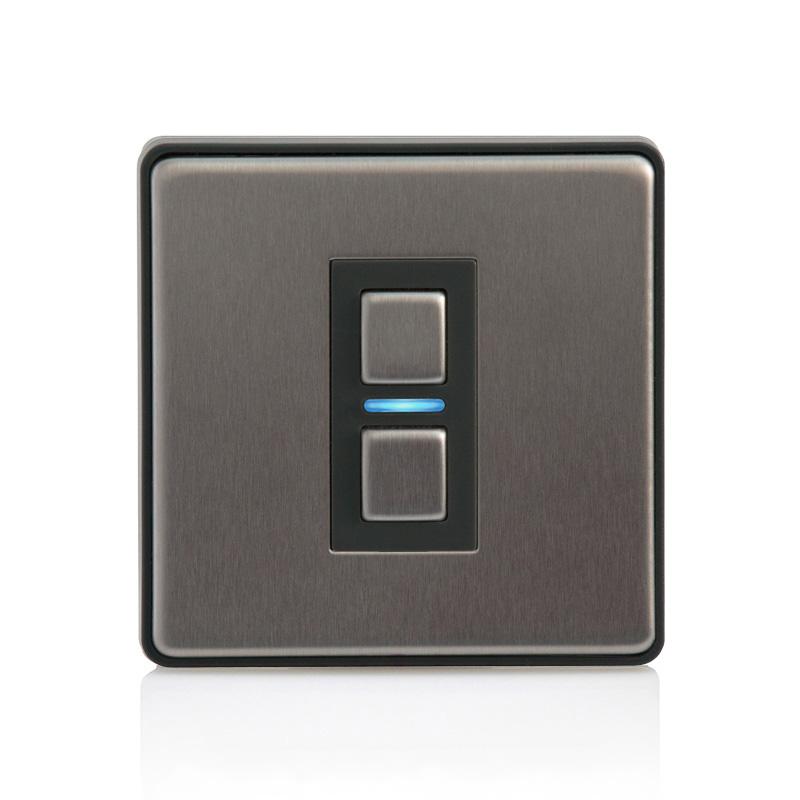
Lightwave Smart Dimmer 1 gang – 2nd generation Model L21 →
Step 5: Restore Power and Test
Go back to the consumer unit and switch the breaker back on. The light should respond normally to the switch.
Press the switch up and down. The light should turn on and off. If nothing happens, turn the breaker off again and check your wire connections.
Once the basic switch works, proceed to WiFi setup.
Follow these five steps in order to install your WiFi light switch safely and correctly.
| Step | What to Do | Key Point |
|---|---|---|
| 1 | Turn off power at the breaker | Test the switch and use voltage tester to confirm |
| 2 | Remove the old switch | Photograph wires first, label each one as you disconnect |
| 3 | Connect the new wires | Match live, neutral, switch and earth to correct terminals |
| 4 | Secure switch in the box | Push wires neatly, align switch flush, screw faceplate on |
| 5 | Restore power and test | Turn breaker back on, check light responds to switch |
How to Connect Smart Light Switch to WiFi
Most WiFi light switches connect to your home network through a smartphone app.
Download the app for your specific switch model. Search your phone’s app store for the brand name. Install it on your device.
Open the app and select “Add Device” or “Pair New Switch.” The app will search for your new switch.
When the app finds your switch, it will ask for your WiFi password. Enter your network name (SSID) and password.
Once connected, you can control the light from your phone anywhere.
The UK government guidance on smart home security recommends using strong WiFi passwords and keeping your app updated.
Installing WiFi Light Switches on Two-Way Smart Light Switch Wiring
Two-way wiring uses two switches to control one light from different locations. Installing a WiFi switch on a two-way circuit requires a special smart switch designed for this setup.
Standard WiFi switches won’t work on two-way circuits. You must buy a two-way smart switch specifically. These switches have additional terminals for the two-way wiring.
Two-way circuits have three wires instead of two:
- Live wire (always connected)
- Switch wire (controlled by both switches)
- Neutral wire (return path)
Your two-way smart switch manual will show exactly where each wire connects. Follow the manual closely. Two-way wiring is more complex than single switches, so take extra care.
If you’re unsure about your wiring type, photograph it and ask the switch manufacturer before purchasing. Installing the wrong switch type wastes money and creates frustration.
Troubleshooting Common Installation Problems
Most installation issues are simple to fix. Start with these checks before calling for help.
The light won’t turn on or off: Check that all wires are firmly connected at their terminals. Loosen and re-tighten each screw.
The switch won’t connect to WiFi: Move your router closer to the switch temporarily. Try connecting again.
The app shows the switch as offline: Check your WiFi network is working. Test on another device.
The light flickers or dims unexpectedly: This usually means the neutral wire connection is loose.
The switch feels warm to touch: Turn off power immediately. A warm switch indicates an electrical fault.
When to Call a Qualified Electrician
Some situations require professional help. Do not attempt these yourself.
Call an electrician if:
- Your switch box has no neutral wire
- You’re unsure which wires are which
- The voltage tester beeps on any wire after the breaker is off
- Your home has old cloth-covered wiring instead of modern cable
- You need to install a new neutral wire from the consumer unit
- Your switch box is damaged or corroded
A qualified electrician holds the appropriate qualifications and insurance. They understand Building Regulations and can certify the work. For complex installations, this is the safest and smartest choice.
Find a qualified electrician through the Electrical Contractors’ Association or ask for local recommendations from friends and neighbours.
If you encounter problems during your installation, customer support at Ledlam Lighting can advise whether you need professional help or if the issue is something you can fix yourself.
Installing a WiFi light switch transforms how you control your home’s lighting. The Lightwave Smart Dimmer 1 gang – 2nd generation Model L21 offers reliable WiFi control with Apple HomeKit and Amazon Alexa compatibility, making it a solid choice for most UK homes looking to upgrade their lighting control.
Frequently Asked Questions
Do WiFi light switches need a neutral wire?
Most modern WiFi light switches require a neutral wire to operate reliably. The neutral wire provides a continuous return path for power, which smart switches need to stay connected and responsive. If your circuit lacks a neutral wire (common in older installations), you may need to run additional cable or choose a switch designed for two-wire installations. Always check your switch’s specifications before purchasing.
How do I know if a WiFi light switch is compatible with my wiring?
Check whether your circuit is single-pole or two-way, and confirm you have (or can access) a neutral wire. Verify your switch voltage matches your home’s supply, typically 230V in the UK. Look at the switch’s compatibility list for your WiFi network standard and smart home platform. If you’re unsure about your wiring setup, take photos of your existing switch terminals and consult the manufacturer’s compatibility guide or ask an electrician.
Can I install a WiFi light switch myself, or do I need an electrician?
If you’re confident working with electricity and your installation is straightforward (single-pole switch, accessible neutral wire, no complications), you can install it yourself. However, if your circuit lacks a neutral wire, involves two-way switching, or you’re uncertain about any step, hire a qualified electrician. Working safely with electricity is essential, mistakes can cause fires or injury. When in doubt, professional installation is worth the cost.
What should I do if my WiFi light switch won’t connect to the network?
First, check that power is reaching the switch by testing it manually. Ensure your WiFi router is within range and broadcasting the correct frequency (2.4GHz for most smart switches). Restart both the switch and your router, then try reconnecting through the app. Verify you’re using the correct WiFi password and that your home network isn’t blocking the device. If problems persist, consult the manufacturer’s troubleshooting guide or contact their support team.
